This is a complete tutorial for Site Search Back-End and Front-End. After this tutorial, you'll be able to manage your records including add, edit and delete records, retrieve records from database and set your preferences. Also, proceed to Administrator Section tutorial to learn about settings and information, create One Admin user account and installation.
User Log In
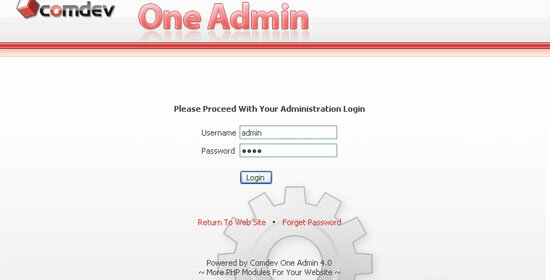
To proceed with your 'Administration Login', browse the URL to your 'Oneadmin' folder, for example 'http://your_domain_name.com/oneadmin/'.
Enter your username and password, and Click 'Login'. Click 'Return To Web Site' if you wish to return to the main page of your domain or click 'Forget Password' to retrieve your password.
Add Site Pages
Go to the 'Site Search' link. Then click on 'Add Page' button to add pages in your search list.
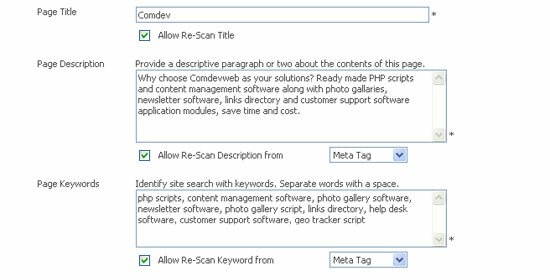
Enter the URL of the page you want, eg. 'http://www.comdevweb.com'. Select options either to 'Get Title from Title Tag' or 'Get Description from' and 'Get Keyword from' meta tag or page content.
After you select, click 'Get'.
Re-Scan Meta Info.
To get title tag, description and keyword again, you can check the box to allow re-scan title, description and keyword from either meta tag or page content.
Last of all, click 'Add' to save the Site Search page.
List Out Site Pages
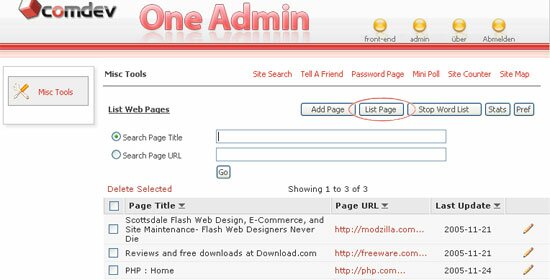
To list out the entire site search pages available, click 'List Page' button.
You can search by 'Page Title' or 'Page URL'. You can also delete and edit site pages.
To perform re-scan on the site pages, please select the page url from the list. Then, click on 'Re-Scan' button. Only the Title, Page Description and Page Keywords Option check will be scan. (Note : Only Page Title, Page Description, Page Keywords will be updated without blank values only.)
Confirm Re-scan Option
A confirmation message will pop up after you hit the 'Re-Scan' button. Please take note that scanning will be performed to those page(s) with 'Allow Re-scan' options checked, this will writes the new meta details to your database.
Add Stop Words
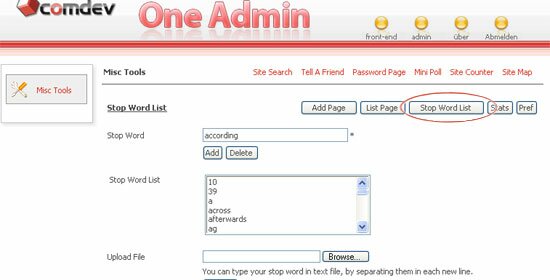
For faster search result, it is best to filter common words. Click 'Stop Word List' button to add and delete the stop word that you wish. If you have a list of stop word in text file, you can upload the file. Browse for the file location and click 'Upload'.
(Note : You can type your stop word in the text file, by separating them in each new line. Click here for an example.)
View Statistics
Click 'Stats' button on top to view statistics that will enable you to view last search date by user, number of result found and number of time searched.
You can search by keywords to view statistics, delete and clear all statistics.
Set Your Preferences
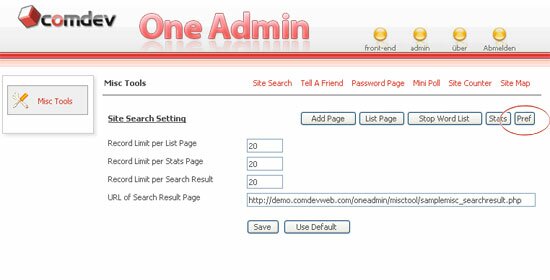
You can define the 'Record Limit per List Page', 'Record Limit per Search Result' and 'Statistics Page'. You can even change the search result URL, for eg. 'misctool_searchresult.php' or you can use default setting. Click 'Save' once you're done.
Please be reminded that, you have to change the URL according to your search result page of your website.
Front-end - Site Search
Search the website you want by using phrases or keywords.
You can obtain integration code and learn about integration guidelines by clicking here.





)