 |
| Manage Links Category |
Top
|
 |
| 1. |
Make sure at least one category is created before adding any link. |
| 2. |
Insert category name. |
| 3. |
Use default Date Created or modify it. Maintain date format as YYYY-MM-DD. |
| 4. |
Choose a parent category. |
| 5. |
Enter short description of the category. |
| 6. |
Browse category icon. If no image is uploaded, default icon is used. |
| 7. |
Click Add. The new category is highlighted in the list below. |
| 8. |
Re-order the list by clicking  in the label of each column. in the label of each column. |
|
| Adding a Link |
Top
|
 |
| 1. |
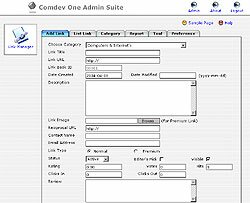
Go to Add Link page to add a new link. |
| 2. |
Enter link details. Leave Date Modified, Rating, Votes, Hits, Click in and Click Out blank. |
| 3. |
Browse and insert link image. Applicable to Premium link only. |
| 4. |
Reciprocal URL - URL of the link's webpage where you can find a link back. |
| 5. |
Insert Contact Name and Email Address of link owner. |
| 6. |
Choose a link type of either Normal or Premium. |
| 7. |
Visible: Check to show this link on website. Uncheck to hide. |
| 8. |
Write a review if you wish. Click Add. |
|
| List, Sort and Search Links |
Top
|
 |
| 1. |
Check the radio button next the type of links you are looking for, then click Search. |
| 2. |
To show the links of a specific category, check the radio button of Category, select a category and click Search. |
| 3. |
For quick search, enter a phrase or keywords of link title and click Search. |
| 4. |
Click Reset to clear all settings of searching. |
| 5. |
Re-order the list by clicking icon on the list label bar. |
| 6. |
Click  icon to edit a link or click on the icon to edit a link or click on the  icon to delete a link. icon to delete a link. |
| 7. |
Go through the entire list with Previous and Next navigator. |
|
| Edit, Modify Reviews of a Link |
Top
|
 |
| 1. |
Here, you can view total Click-In, Click-out, Average Rating, Votes and Hits of the link, or edit any link info. |
| 2. |
For link image, click View to popup image. To change image, simply click Delete and browse for new image. |
| 3. |
Click Add Review to add your review. |
| 4. |
Modify any inappropriate review, respectively. |
| 5. |
Once done, click Update to save changes. |
| 6. |
To remove this link, click Delete. Click Back to return to List Link page. |
| 7. |
Proceed to other links using Previous and Next. |
|
| Reports and Approvals |
Top
|
 |
| 1. |
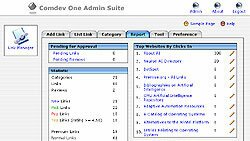
This page summarize the number of pending links, pending reviews and statistical report of your Link Archive. |
| 2. |
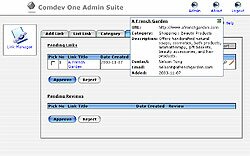
Click Pending Links. You will see a list of pending links ontop and a list of pending reviews underneath. |
| 3. |
Click  icon to have a quick glance of a link url, owner and description. icon to have a quick glance of a link url, owner and description. |
| 4. |
Click to access full details of a link. |
| 5. |
Checks the boxes on your right, associated with the links to approve and click Approve. |
| 6. |
Click Reject will remove all the selected links from your database. |
| 7. |
For Pending Reviews, repeat the procedures as in links approval. |
| 8. |
Return to Report page with Back To Report button. |
|
| Links Checking Tools |
Top
|
 |
| 1. |
Click Tool. Pick Check Broken Link or Check Link Back option. |
| 2. |
Select a category if you wish to check links within that category only. |
| 3. |
In order to avoid server time out, choose lower number of links to check per cycle. |
| 4. |
Click on the Check button. |
| 5. |
A window popup keeps you knowing the checking progress. |
| 6. |
Upon completion, Number of Links checked, Time Start and Time End are reported. |
| 7. |
Click Close Window to get back to Tool page. |
|
| Preference Settings |
Top
|
 |
| 1. |
Set the number of links to show per page in List Link page. |
| 2. |
Define how many links to show per page when an user clicks on a category on the website. |
| 3. |
Expiry of New Links - How many days 'New' to be attached to a new added link (counted from date of approved.) |
| 4. |
From email address - Sender email whenever an notification email is sent to link owner. |
| 5. |
Insert Text Link and Banner images, respectively. Used in Link To Us page. |
| 6. |
Email Content - Modify the subjects as well as contents to suit your needs. Maintain [[variable]]. |
|
|
|
 |
|
 |
|
|
 |
|
|
|
|
|
|
|
|
|
|
|
|
|
|
|
|
|
|
|
|
|
|
|
|
|
|
|
| Customer Testimonials |
"Wonderful simply wonderful I would recommend this software to anyone and the support was the greatest. I can say nothing better then this."
- David Vande Burgt
"Got it all worked out. Thanks for your patience and all your help, I will recommend you to my friends."
- Maarten, Queensland Campers |
|
|
|
 |
|


