


Photo Gallery : Product Features
 Online Photo Album Auto Thumbnail Creation, Resize, Copyright Online Photo Album Auto Thumbnail Creation, Resize, Copyright
Bulk Upload Photos |
Photo Submission Membership & Private Access Search Engine Friendly, Anti-Spam |
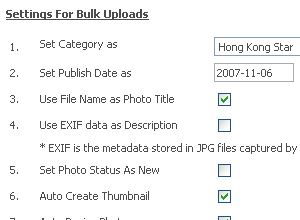 |
Bulk Upload SettingsBesides using Add Photo as the normal upload method, you can use Bulk Upload to speed up your upload process. In Bulk Upload, choose the settings before you start to upload. For example, choose which category you wish to upload all the photos, use the filename as title, auto create thumbnails, resize photos and so forth. |
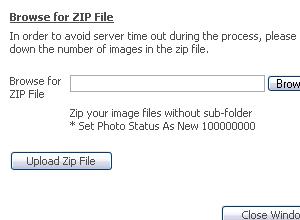 |
Method 1: Using ZIP FileUsing Method 1, you will need to compress all the photo files in ZIP format and upload the ZIP file. The script will then process each photo in the ZIP file and enter its details in your photo album. This method has a file size limitation as controlled by your server configuration. |
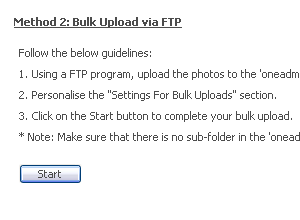 |
Method 2: Using FTPUsing Method 2 with FTP allows you to upload many of your photos with larger file size and avoid the time out and file size issues in Method 1. First, upload all your photos to the 'oneadmin/_files/photo_ftp' folder and click on 'Start' button to complete the process. |
|
|
|
| Proceed to Buy Now , Online Demo or Talk to Us | Features : Photo Submission |